Precise vs approximate location on iPhone
There is a switch under every app in Location Services that most people never touch. It decides whether the app gets your street or your general area.
6 min read
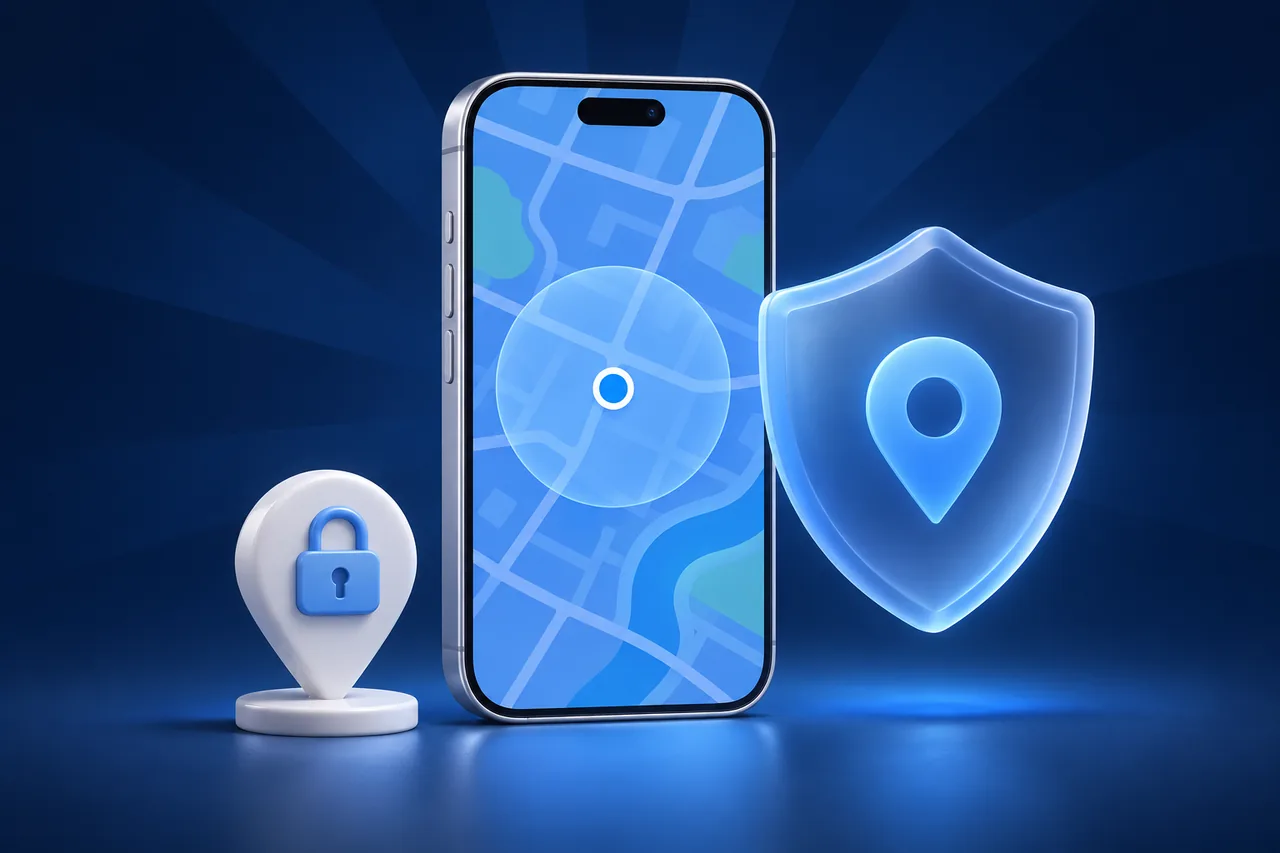
Every app with location access on your iPhone has a second switch under it called Precise Location. With it on, the app gets your exact position. With it off, the app gets an approximate area, wide enough that it cannot tell which street you are on. Apple added this so that an app can know your town without knowing your front door.
This guide shows where the switch is, which apps need it on, and what breaks when you turn it off.
Where to find the setting
- Open Settings, then Privacy & Security, then Location Services.
- Scroll to the app and tap it.
- Choose how often the app can use your location.
- Turn Precise Location on or off below that choice.
Apple’s Location Services guide describes the same steps, and states that with Precise Location off, the app gets only your approximate location. The switch appears only after you allow some location access, because with Never there is nothing to make precise.
Apps can also ask you directly. When an app first requests location, the prompt shows a map with a Precise toggle in the corner. Whatever you choose there ends up in the same setting.
Two settings, two questions
It helps to keep the two parts of each app’s entry apart:
- When the app can read your location: Never, Ask Next Time Or When I Share, While Using the App, or Always.
- How exact that location is: precise or approximate.
You can combine them. A weather app on Always with approximate location can update your local forecast in the background without ever knowing your address. A navigation app on While Using the App with precise location knows exactly where you are, but only while you use it.
Apps that need precise location
- Navigation: Apple Maps, Google Maps, and Waze cannot give turn-by-turn directions from an area several miles wide.
- Ride-hailing and delivery: a driver needs to know which corner you are on.
- Family sharing apps:Find My and Life360 depend on precision for arrival alerts at home, school, or work. Life360’s permission settings guide asks for Always and Precise Location on iPhone.
- Fitness tracking: a run recorded with approximate location is a few jumpy points, not a route.
Apps that work fine with approximate
- Weather and air quality.
- News, local events, and store finders that only need your city.
- Social apps where you only want posts from your region.
- Shopping apps that use location to pick a currency or a store.
For these, approximate location gives the app what it needs and nothing more. If an app stops working well, you can always switch precision back on.
Common problems
The app shows me in the wrong part of town
Check its Precise Location switch first. An approximate location can look like a random point inside a wide circle, and some apps show that point as if it were exact. Turn precision on and force-quit the app.
Arrival alerts never fire
Geofence alerts need precise location and usually Always access. With approximate location, the phone cannot tell if you crossed into a small area such as your home. More fixes for stuck sharing apps are in Life360 location not updating.
The Precise Location switch is missing
Either the app has location access set to Never, or Screen Time restrictions lock Location Services. Allow some access first, or check Screen Time, Content & Privacy Restrictions.
The location is precise but still wrong
That is a fix problem, not a permission problem. Turn on Wi-Fi, turn off Low Power Mode, and go near a window. The full checklist is in iPhone location not updating.
Precision and simulated locations
When a Mac sets a simulated location with a tool like GhostMe, iOS treats it as the device location and passes it to apps through the same permissions. An app with approximate access still gets only an approximate version of the simulated spot. If you are testing how an app behaves at a specific address, turn on its Precise Location switch first.
Common questions
Does approximate location save battery?
Apple does not promise that it does. The switch controls what the app receives, not how hard the phone works to find you. Other apps with precise access can still use GPS.
Can I see which apps use precise location?
Not in one list. Open each app in Location Services. The quickest way is to check the apps set to Always first, because those can read your location at any time.
Does approximate location hide me from the app company?
It limits what the app receives from Location Services. The company can still see your IP address and anything you type, such as a delivery address. See VPN vs GPS location on iPhone for the difference.