How to change your location on Google Maps
Most people who search for this want one of three things. Each has a different fix, and only one of them involves your GPS.
7 min read
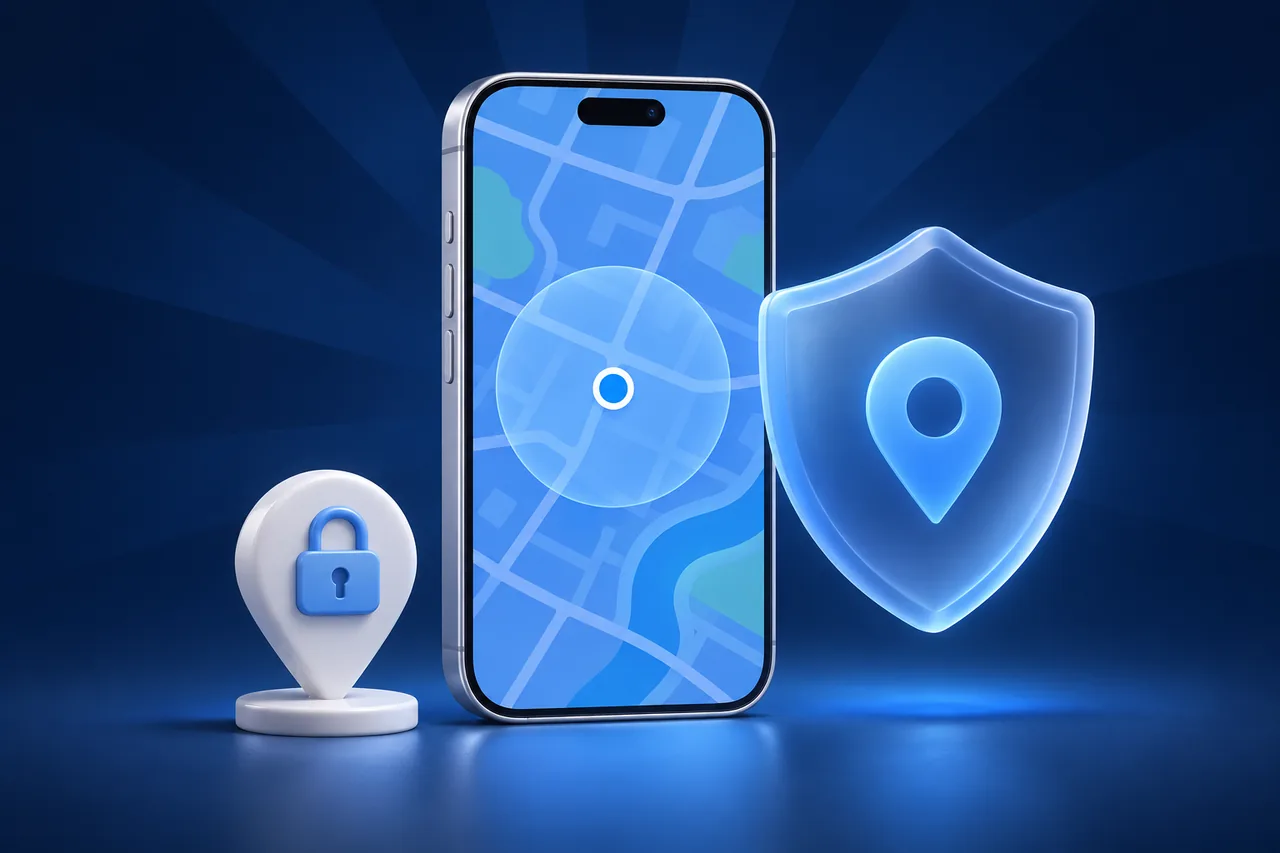
“Change my location on Google Maps” can mean three different things. You might want the blue dot to be somewhere else. You might want to update your saved home or work address. Or you might want to change or stop the location you sharewith other people. Each one lives in a different setting, and only the first involves your phone’s GPS.
A fourth thing people often expect is not possible at all: moving a business listing by moving your phone. That is covered at the end.
1. The blue dot: your current location
The blue dot is your device location. Google Maps asks iOS for it, the same way every app does. If the dot is wrong, the fix is usually accuracy, not a setting in Google Maps. Google’s location accuracy guide for iPhone lists these checks:
- In Settings, Privacy & Security, Location Services, make sure Location Services is on. Then select Google Maps and choose While Using the App or Always.
- Turn on Precise Location for Google Maps in the same screen.
- Turn Wi-Fi and mobile data on and Airplane Mode off.
- Turn Low Power Mode off if the dot jumps around.
- Restart the iPhone if the dot is still wrong.
The light blue circle around the dot shows how sure Maps is. A wide circle means a weak fix. A grey dot means Maps cannot find you and shows your last known location instead. If the beam that shows your direction is wide or points the wrong way, Google suggests calibrating the compass.
If the dot is right but you want it somewhere else, iOS has no setting for that. The supported way is the developer location simulation a Mac can send to a connected iPhone. Xcode can do it, and so can GhostMe, which lets you pick a place on a map or play a walking or driving route. Google Maps then reads that location like any other. Check supported devices first, and restore the real location when you finish, because other apps may also use the changed position.
2. Saved home and work
Home and work are saved addresses in your Google Account. They do not depend on where your phone is, so moving the blue dot does not change them. To edit them, open Google Maps, go to your saved places, open the Labeled list, and edit Home or Work. You can also change them from your Google Account under Personal info, Addresses. Google describes both ways in Manage your addresses in your Google Account.
Google says only you can see your home and work addresses. They control commute times, “directions home” shortcuts, and some suggestions. If those still use an old address after you move, this is the setting to change.
3. The location you share
Google Maps location sharing sends your device location to the people you choose. You cannot type a different address there. You can only choose who sees it and for how long. From Google’s real-time location sharing guide:
- To start, tap your profile picture, then Location sharing, then New share. Pick a time limit or until you turn it off.
- To stop, open Location sharing, choose the person, and tap Stop.
- People you share with can see your recent location, your battery level, and whether the phone is charging.
If someone says your shared location is wrong, the problem is the blue dot on your phone. Fix accuracy using the steps in section 1. If the dot is right on your phone but old on theirs, see the general checks in iPhone location not updating.
What GPS cannot change: business listings
A business location on Google Maps comes from its Business Profile, not from anyone’s phone. Moving your iPhone location changes where Maps thinks you are. It does not move a shop, an office, or a pin that other people see in search results.
If you own the business, edit the address in your Business Profile. Google’s Manage your business address guide covers the steps. Google reviews the change, and a moved business can need new verification. If the listing is not yours but has a wrong pin, use Suggest an edit on the place in Google Maps.
Common questions
Does a VPN change my Google Maps location?
Not the blue dot. A VPN changes your IP address, which can affect the region for search results, but Maps uses your device location for the dot. See VPN vs GPS location on iPhone.
Why does Google search show the wrong city when Maps is right?
Google Search can use other signals, such as your IP address and your saved home, as well as device location. If Safari does not have location permission for Google, search falls back to those.
Can I search an area without changing my location?
Yes. Pan the map to the area and search there. Google Maps searches the visible area. This is enough for most trip planning, and it changes nothing on the phone.
Will changing my iPhone location affect Timeline?
If Timeline is on, Google Maps records the locations the phone reports. A simulated location can appear there. Turn the simulation off with Stop & Restore Location when you finish. See how to restore your real location.